Using AI to turn FAQs, policies, and old emails into instant answer docs for your front desk or admin team
Build an AI internal knowledge base for small business staff in under an hour using free tools. Turn FAQs, policies, and old emails into instant answers.
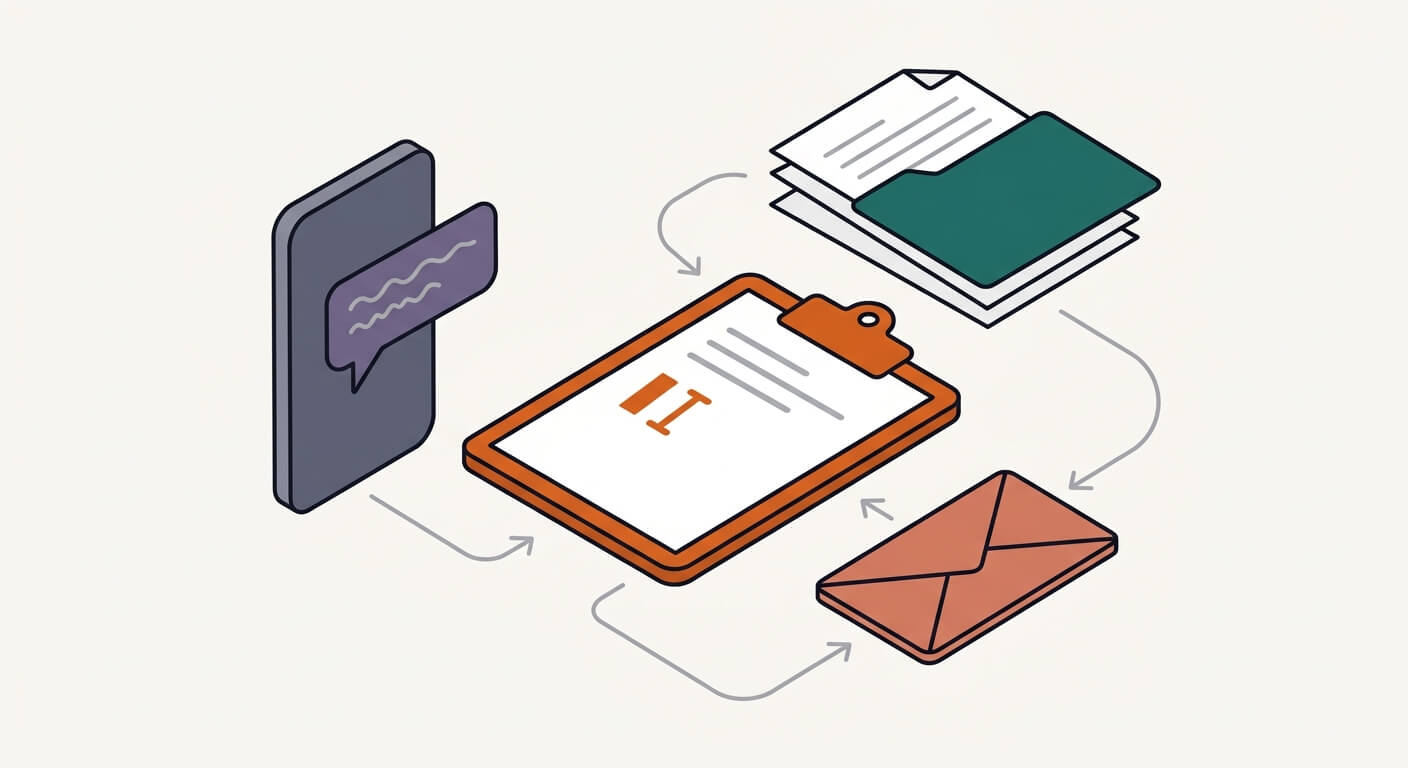
Building an AI internal knowledge base for small business staff doesn't require a budget or technical skills — just your existing documents and about an hour. McKinsey research on workplace productivity puts the average employee time spent searching for information at 1.8 hours per day — that's roughly 9 hours a week your front desk or admin team is burning on questions that already have answers somewhere in your files. This post walks you through how to collect your existing FAQs, policies, and old emails, upload them to an AI tool, and give your staff a system they can actually query in plain English. The setup takes under an hour for a basic version, and the ROI is straightforward: even a 30% reduction in daily information-hunting saves a full-time employee about 2.7 hours per week.
What You Need to Build an AI Internal Knowledge Base for Small Business Staff
Google NotebookLM — a free AI tool from Google that lets you upload documents and query them conversationally using RAG (Retrieval-Augmented Generation), meaning answers are grounded in your actual content rather than generated from thin air. Pricing: free with a Google account — no paid plan required for this use case. Check the NotebookLM site for any plan changes, as Google updated this product significantly in 2025.
If your team is already on Microsoft 365, Microsoft Copilot is worth evaluating instead — it can search across SharePoint, Outlook, and Word natively. Copilot licensing and availability vary by plan, so check Microsoft 365 pricing and Copilot details for current rates.
Time required: 45–60 minutes for a basic setup with 5–10 documents. A full setup with a complete document library (20+ files, including cleaned-up email threads) runs 2–4 hours, including the document audit.
Skill level: No technical background needed. You need a Google account and the ability to copy, paste, and upload files. No coding. No IT support required.
Use AI to Answer Staff Questions from Documents: Step-by-Step
Step 1: Audit your source documents before you upload anything.
Open whatever folder, drive, or inbox currently holds your policies and FAQs. The quality of your AI answers depends entirely on the quality of what you feed it — vague or outdated policies produce vague or outdated answers. Pull out anything you know is out of date and either update it now or set it aside. A 15-minute document audit here prevents a lot of confusing AI output later.
Step 2: Assemble your starting document set.
Collect these specific file types as a priority — they cover the 5–15 recurring question types a typical small business front desk handles daily:
- Staff handbook or employee policy document
- Return, refund, or service policy
- Current pricing sheet or service tier list
- Hours of operation and holiday schedule
- Supplier and staff contact list
- Top 20 customer FAQs (even a rough Word doc works)
- Any procedure checklists (opening/closing, complaint handling, etc.)
Save these as PDFs, Google Docs, or plain text files. NotebookLM supports all three formats.
Step 3: Go to NotebookLM and create a new notebook.
Click "New Notebook," give it a name your staff will recognize ("Front Desk Reference" or "Admin Q&A"), and then click "Add Sources." Upload your document set. NotebookLM will process each file — for a typical set of 5–10 policy documents, this usually takes under two minutes.
Step 4: Test with real questions before you share the notebook with your team.
Type in the exact questions your front desk actually gets. Start with the most common ones — hours, refund policy, who to call when a supplier is late. Check that each answer cites the correct source document. If the answer is vague or hedged, that's usually a signal that your source document is also vague.
Test prompt template: "What is our policy for [specific scenario, e.g., a customer requesting a refund after 30 days]? Please quote the exact policy and tell me which document this comes from."
After asking this, you should see a direct answer with a citation pointing to the source document. If the answer says something like "I don't have specific information about this," it usually means the policy either doesn't exist in your documents or is buried in language the AI can't parse — go back and clarify that section of the source document, not the AI settings.
The citation requirement matters here. NotebookLM's RAG approach helps reduce hallucinations by grounding answers in your source documents. If the source doesn't contain the information, a grounded tool is more likely to say it doesn't know or give an incomplete answer than to confidently invent one. Tools that don't ground responses in your documents can hallucinate plausible-but-wrong answers more easily. That's a real operational risk when your front desk is relying on the output.
Step 5: Turn old emails into an internal FAQ with AI.
Old emails contain decisions, procedures, and exceptions that were never formally documented. Forward relevant email threads to a text file or paste them into a Google Doc, label them clearly ("Supplier escalation procedure — emails Jan–Mar 2025"), and upload them as a source. This is one of the most underused moves in small business knowledge management — procedures that exist only in someone's inbox become searchable for the whole team.
Step 6: Share the notebook with your front desk or admin team.
In NotebookLM, use the available sharing settings to give your team access. Walk them through asking their first question in person — the chat-style interface has higher adoption than a shared drive or wiki because staff already communicate by typing questions. The transition cost is low.
When Something Goes Wrong
Symptom: The AI gives a confident answer that contradicts your actual policy. Root cause: You likely have two conflicting versions of the same policy in your document set — for example, an old FAQ document and a newer staff handbook that say different things. Fix: Search your document set for the conflicting term, reconcile the policies in the source documents, remove the outdated version from NotebookLM, and re-upload the corrected file. Do not try to fix this by editing a prompt — fix it at the source.
Symptom: Staff report that the AI "doesn't know" basic information they expected it to have. Root cause: The information exists verbally or in someone's head, but was never written down in an uploaded document. Fix: Run a quick interview with whoever holds that knowledge, write it into a one-page procedure document, and add it to the notebook. This is a document gap, not a tool limitation.
Symptom: Answers are accurate but too long or too technical for front desk use. Root cause: Your source documents are written for compliance or legal purposes, not for staff reference — they're dense and conditional. Fix: Create a simplified "plain English" version of the key policies as a separate document and upload it alongside the original. Prompt staff to ask the AI to "summarize in two sentences" when they need a fast answer.
What to Do Next
Once your basic knowledge base is running, assign one person to a quarterly document review — check for policy changes, update pricing sheets, and retire any outdated files. The AI is only as current as its sources, and maintenance is the hidden work most teams skip until the system starts giving wrong answers.
For teams that want to go further — connecting this to a live chat widget or integrating with a CRM — tools like Guru (starting at approximately $10/user/month as of early 2026, per Guru's pricing page) and Tettra (starting at approximately $4/user/month as of early 2026) offer more structured knowledge management with team permissions, verification workflows, and integrations. The trade-off is setup time and cost — NotebookLM gets you operational in under an hour for free; Guru gives you governance features your business may not need yet.
You can also explore how AI tools handle more complex staff communication tasks: [using AI to automate internal communications and staff updates](PENDING: using AI to automate internal communications and staff updates for small businesses)
FAQ
How much does it cost to build an AI knowledge base for a small business? The honest answer is: zero to start, if you use NotebookLM with a free Google account. If you want more structured features — version control, staff permissions, verification workflows — budget $4–$10/user/month depending on the tool. For a 5-person front desk team, that's $240–$600/year. Pricing checked early 2026 — verify current rates before committing, as SaaS pricing changes frequently.
What's the risk of AI giving wrong answers to my staff? The primary risk is hallucination — the AI generating plausible but incorrect information when source documents have gaps. Tools using RAG (like NotebookLM) minimize this by grounding answers in your uploaded documents and making it easier to trace answers back to source material, rather than guessing blindly. The residual risk comes from outdated or incomplete source documents, which is why the document audit in Step 1 matters.
Can I use AI to search old emails as a knowledge source? Yes, and it's one of the higher-value moves here. Paste email threads into a Google Doc or text file, label them clearly, and upload them as a source document. Claude 3.7 Sonnet and GPT-4o can also query uploaded email content directly in their chat interfaces with no setup — useful for one-off searches before you've built a formal system.
Does this approach work for sensitive industries like healthcare or legal? Here's the catch: tools like NotebookLM store uploaded data on external servers. If your documents contain HIPAA-protected health information, personally identifiable information (PII), or privileged legal content, you need to verify whether your chosen tool's data handling meets your compliance requirements before uploading anything. For healthcare, legal, or financial businesses, check your internal compliance requirements or get professional guidance first. The no-code free tools are not automatically compliant with sector-specific regulations.
How much time does an AI knowledge base actually save? The numbers say: McKinsey puts information-hunting at 1.8 hours/employee/day. Industry analyses from 2024–2025 suggest AI knowledge tools reduce that by up to 35%, which works out to roughly 37 minutes per employee per day. For a 3-person front desk team, that's approximately 1.85 hours saved daily — or around 9 hours per week. At even a modest $18/hour fully loaded labor cost, that's over $8,400 in annual recovered time for a small team. I don't have a controlled study specific to NotebookLM to cite here — treat that extrapolation as directional, not a guarantee.
Read Next
How to use AI to summarize long supplier or vendor contracts so you actually know what you're signing
OperationsUsing AI to write the listing description and buyer FAQ for selling your small business or a business asset
OperationsHow local service businesses are using AI chatbots on their website to book appointments while they sleep