Using AI to turn handwritten notes, forms, and receipts into clean digital records without manual typing
AI scan handwritten notes and forms into digital records using ChatGPT, Dext, and Azure. Step-by-step setup to save 6–10 hours per week on data entry.
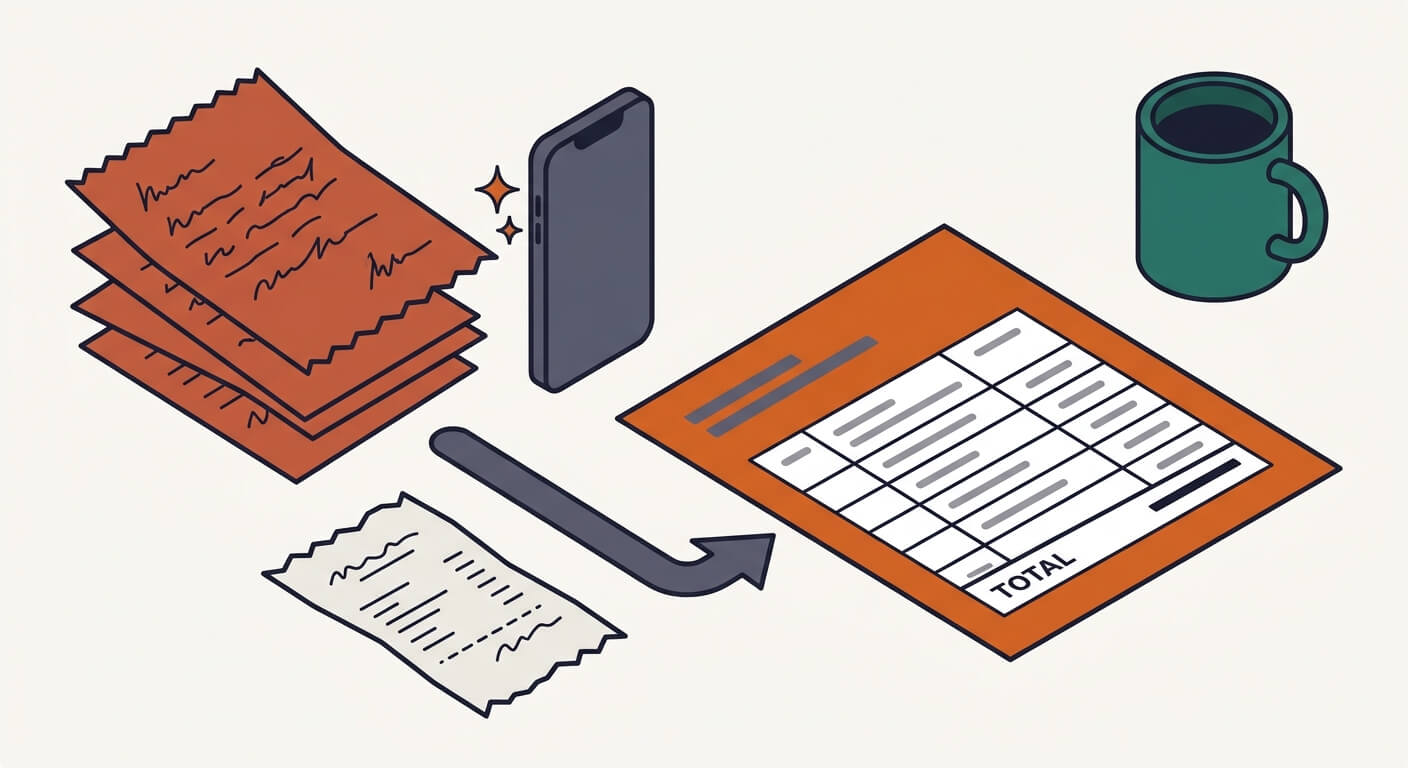
Manual data entry costs an estimated $4.56 per document in labor time, according to AIIM research — and a typical small business generates between 500 and 5,000 paper documents per year. If you want to AI scan handwritten notes and forms into digital records, this post walks you through the best tools for converting handwritten notes, paper forms, and receipts into clean digital data, plus how to wire those records directly into your spreadsheets and accounting software. The setup takes an afternoon; the payoff is 6–10 hours per week back from manual data entry, based on reported outcomes from businesses using tools like Dext and AutoEntry.
What You Need Before You Start
A smartphone or flatbed scanner — your capture device. Most modern smartphones produce image quality sufficient for strong handwriting recognition when the document is clear, flat, and well lit. A flatbed scanner produces more consistent results for high-volume batch processing.
Adobe Acrobat, Microsoft Lens, or Adobe Scan — mobile scanning tools that use AI to auto-detect edges, correct perspective, and enhance image quality before OCR runs. Availability and feature sets can vary by platform and plan.
An AI extraction tool — options range from free or low-cost (ChatGPT, Claude) to purpose-built paid tools ($15–$50/month). I'll break down which to use when.
Time required: 30–60 minutes for basic setup with a single tool. 2–4 hours for a full workflow connecting to accounting software or a spreadsheet via automation.
Skill level: Beginner to intermediate. Steps requiring Zapier or Make integrations assume you can follow a visual workflow builder — no coding needed, but you'll need accounts on both platforms.
How AI Scanning Handwritten Notes and Forms Actually Works
AI document processing combines two technologies: optical character recognition (OCR) to detect characters in an image, and a language model to interpret and structure what it finds. Modern tools like Google Cloud Document AI and Microsoft Azure AI Document Intelligence achieve 95–99% accuracy on printed text and 85–95% on clear handwriting — a significant jump from legacy OCR, which struggled below 80% on anything handwritten. General-purpose multimodal models like GPT-4o and Google Gemini 2.0 Flash can process images directly without dedicated OCR software, making them viable for low-to-medium-volume use cases without any specialized OCR setup.
Here's the catch: accuracy drops measurably with poor lighting, cursive script, smudged ink, or non-standard paper. The AI is reading pixels, not understanding handwriting the way a human does — so your photo quality directly determines your output quality.
The Best AI Tools to Extract Data From Paper Forms in 2026
The right tool depends on your volume, budget, and whether you need accounting integration out of the box. Here's what the options actually are, with honest trade-offs.
For receipts and invoices with accounting sync: Dext and Hubdoc are purpose-built for this. Dext plans and limits vary by region and package, while Hubdoc is commonly included with many Xero subscriptions. Ramp includes receipt scanning at no additional cost if you use it as your corporate card platform. These tools extract vendor name, date, amount, tax, and category automatically, then sync with QuickBooks, Xero, and FreshBooks. They outperform general-purpose LLMs on structured receipt data because they're trained specifically on receipt formats.
For handwritten notes and general documents: GPT-4o (available in ChatGPT and via API, depending on plan and workspace settings) and Claude 3.7 Sonnet both accept image uploads and can parse handwritten content. Google Gemini 2.0 Flash is available through Google's AI products and API ecosystem, with Workspace access depending on plan and feature rollout, and it offers competitive handwriting extraction at lower cost than GPT-4o in many high-volume use cases.
For structured intake forms at volume: Azure AI Document Intelligence offers pre-built models for receipts, invoices, business cards, and W-2s. These purpose-trained models outperform general LLMs on structured form extraction when you're processing hundreds of documents per month. Pricing is usage-based and changes over time, so check Azure pricing before estimating costs.
For handwritten meeting notes and personal knowledge management: Notion AI, Evernote (with AI features), and Mem.ai can convert scanned or photographed handwritten notes into searchable, editable digital text and summarize them automatically.
Step-by-Step: Convert Handwritten Notes to Spreadsheet With AI
This workflow uses ChatGPT (GPT-4o) for handwritten content, or Dext for receipts — the most accessible starting points for most small businesses.
For a handwritten form or notes using ChatGPT:
- Open your phone's camera or Microsoft Lens app and photograph the document. Ensure the paper is flat on a neutral surface, in good lighting, with no shadows across the text.
- If using Microsoft Lens, select "Document" mode — it will auto-correct perspective and enhance contrast before saving. Save as a JPEG or PDF.
- Open ChatGPT and start a new conversation. Image upload availability depends on your plan and workspace settings.
- Upload the image using the attachment icon and enter this prompt:
Extract all information from this handwritten document and return it as a structured table with the following columns: [Field 1], [Field 2], [Field 3]. If any field is unclear or illegible, mark it as "[unclear]" rather than guessing. Return nothing except the table.
- Review the output. Any field marked "[unclear]" requires a manual check against the original document.
- Copy the table into Google Sheets or paste it as a starting point for your records.
The "[unclear]" flag instruction is not optional — without it, GPT-4o will sometimes fill in plausible-looking values for illegible content rather than flagging them. That's a silent error source that's worse than a blank field.
For receipts using Dext:
- Download the Dext mobile app (iOS or Android, free to download).
- Photograph the receipt using the in-app camera — Dext auto-captures when it detects a receipt in frame.
- Dext extracts vendor name, date, amount, currency, tax amount, and category, typically within a few minutes.
- Review the extracted fields in the app. Correct any misread values before publishing.
- Click "Publish" to push the record to your connected accounting software (QuickBooks, Xero, or FreshBooks setup required — done once in Settings).
How to Connect AI Document Scanning to Spreadsheets and Accounting Software
For businesses that want an end-to-end automated workflow — scan to spreadsheet or CRM with no manual steps — Zapier and Make both offer AI-powered document parsing options that connect scanned PDFs to Google Sheets, Airtable, or most CRMs.
- Set up a shared Google Drive folder or Dropbox as your "inbox" for scanned documents.
- In Zapier, create a Zap triggered by "New file in Google Drive folder." Pricing and plan limits change frequently, so check current Zapier plans if you need multi-step workflows.
- Add a document parsing or AI extraction step — Zapier's built-in AI steps or a webhook to OpenAI's API can extract structured fields from the PDF.
- Map the extracted fields (vendor, date, amount, category) to the corresponding columns in your Google Sheet or accounting tool.
- Add an optional filter step: only push records where confidence is above a threshold, or flag records with "[unclear]" fields for manual review.
The trade-off is setup time versus volume. For under 50 documents per month, doing this manually in ChatGPT may cost you only a small subscription and 30 minutes of effort. At 500+ documents per month, the Zapier automation can pay for itself in the first week.
When Something Goes Wrong
Symptom: AI returns garbled or phonetically wrong text in extracted fields. Cause: Poor image quality — shadows, low contrast, or a blurry photo. Fix: Retake the photo in direct natural light with the document flat. Microsoft Lens's auto-enhance mode corrects contrast before OCR runs — use it before uploading to any AI tool.
Symptom: Fields populate in the wrong columns in your spreadsheet. Cause: Your prompt didn't specify the exact column order, and the AI returned fields in a different sequence than expected. Fix: Revise your prompt to explicitly name and number each column: "Return the table with exactly these columns in this order: 1. Date, 2. Vendor, 3. Amount, 4. Category." Consistent prompting produces consistent structure.
Symptom: Dext or Hubdoc misreads the total amount on a receipt. Cause: Receipts with faint thermal printing, unusual fonts, or totals printed at the bottom in a non-standard position can cause extraction errors. Fix: Always review extracted amounts before publishing to accounting software. If your workflow supports a review or approval step, enable it so no record is published without confirmation during the early stages of setup.
Privacy and Compliance: What You Must Know Before Uploading Documents
The IRS allows digital scans of receipts as valid records for tax purposes, provided the digital copy is legible and includes all original information. AI-scanned receipts are generally valid for expense tracking and audits in the US — this is not a gray area as long as the records are complete and readable.
What is a gray area: uploading sensitive documents to consumer AI tools. Standard ChatGPT, Claude free tiers, and consumer Gemini plans should not be assumed to be HIPAA-compliant and should not be used for medical intake forms, legal documents, or financial records containing client PII. For those use cases, Microsoft Azure AI Document Intelligence supports Business Associate Agreements for HIPAA compliance, and on-premise deployment options exist for organizations that cannot use cloud processing. If you're in healthcare, legal, or financial services, verify compliance before uploading a single document.
What to Do Next
Start with receipts if you have an accounting software connection to make — the ROI is immediate and the tools are purpose-built. Start with ChatGPT or Claude if you're dealing with handwritten notes or non-standard forms and want to test before committing to a paid tool.
Once your basic scanning workflow is running, the logical next step is automating the full loop with Zapier or Make — scan, extract, categorize, and file without touching a keyboard. Related reading: [how to build no-code automation workflows for small business admin](PENDING: no-code automation for small business admin tasks)
FAQ
Does AI handwriting recognition work well enough to replace manual entry? For clear handwriting in good lighting, modern tools achieve 85–95% accuracy — high enough to replace manual entry for most use cases if you build in a review step for flagged fields. For messy cursive or damaged documents, accuracy drops to 70–80%, and manual review becomes necessary for every record. The honest answer is that AI gets you 80–90% of the way there automatically; the remaining 10–20% is a spot-check, not a full re-entry.
What does it actually cost to digitize business paperwork with AI? At the low end: $0 to low cost, using a free Claude tier or another entry-level tool with manual image uploads, at roughly 5–10 minutes per document. At the mid-range: $20–$50/month for ChatGPT, Dext, or similar tools, handling up to 50–100 documents per month with semi-automation. At the high end for full automation: $50–$150/month combining a scanning tool, Zapier, and accounting software. Compare that to the AIIM estimate of $4.56 per document for manual entry — at 200 documents per month, that's $912/month in labor versus $50–$150 in tooling. Pricing should always be rechecked before purchase.
Can I use AI to extract data from handwritten client intake forms? Yes, but tool choice matters for compliance. For non-sensitive intake forms (contact info, preferences, basic service requests), ChatGPT or Claude can work well. For forms containing medical history, financial account details, or legal matter information, use Azure AI Document Intelligence with a BAA in place, or an on-premise solution. Never upload sensitive client data to a consumer AI tool without verifying its data processing terms.
How do I convert handwritten notes into a spreadsheet automatically? Photograph the notes, upload them to ChatGPT (GPT-4o) or Claude, and prompt the tool to return the content as a structured table with named columns. Copy-paste the table into Google Sheets, or use a Zapier workflow to automate the transfer if you're processing notes regularly. For meeting notes specifically, Notion AI can ingest scanned handwritten content and produce a formatted, searchable summary automatically.
Are AI-scanned receipts legally valid for taxes? Yes. The IRS accepts digital scans of receipts as valid expense records provided the image is legible and captures all original information — date, vendor, amount, and purpose. In general, a complete and legible digital copy is acceptable, though businesses should follow IRS recordkeeping guidance and any industry-specific requirements. Keep your scanned files organized and backed up; the format matters less than legibility, completeness, and retrieval.
Read Next
How to use AI to summarize long supplier or vendor contracts so you actually know what you're signing
OperationsUsing AI to write the listing description and buyer FAQ for selling your small business or a business asset
OperationsHow local service businesses are using AI chatbots on their website to book appointments while they sleep