using AI assistants to prepare for client meetings and summarize follow-up actions
Learn the workflow for using AI assistants to prepare for client meetings and summarize follow-up actions to save hours of administrative work weekly.
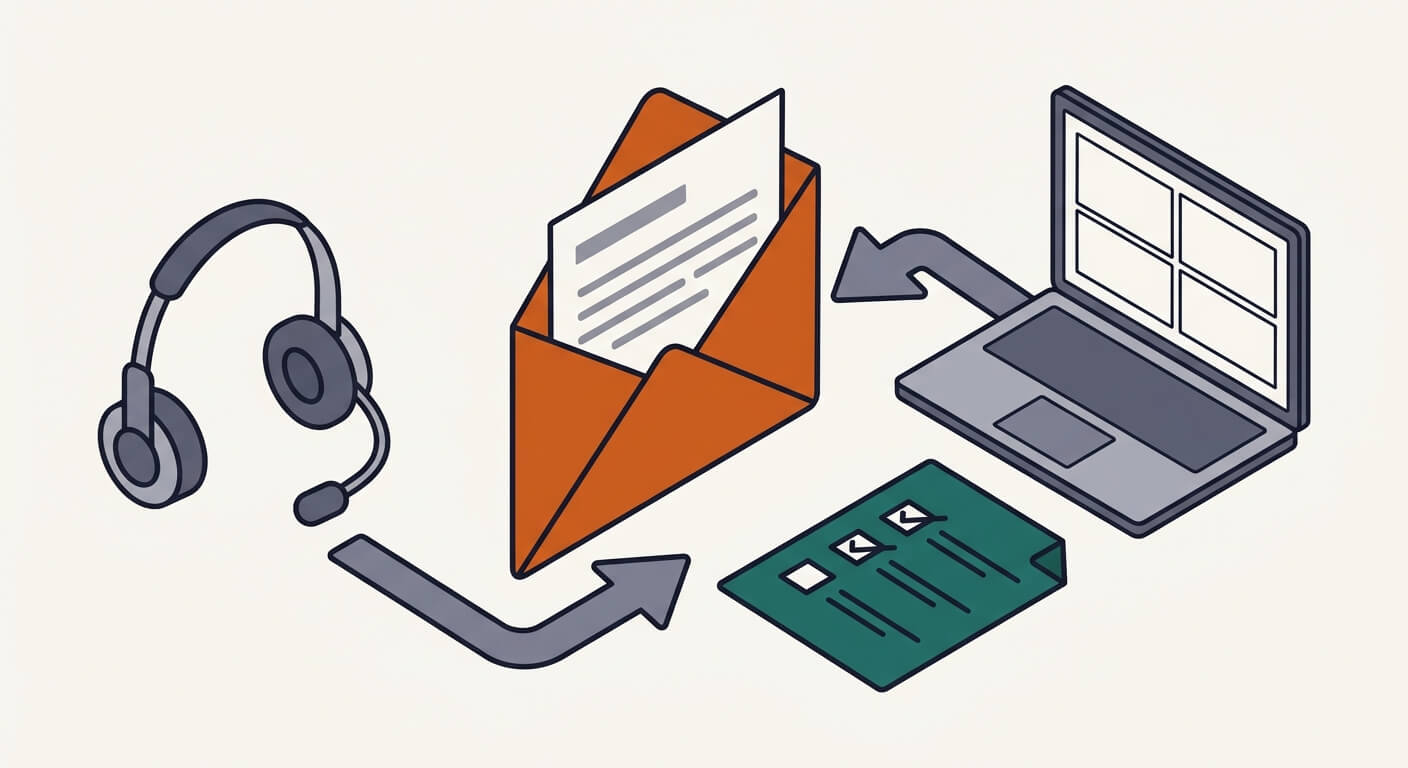
Small business owners lose an average of 4–6 hours per week to manual meeting preparation and the administrative burden of post-meeting documentation. By using AI assistants to prepare for client meetings and summarize follow-up actions, you can cut that time to under 30 minutes, effectively recapturing nearly half a workday per week. This guide details the specific technical configuration required to automate your pre-briefs and CRM documentation while maintaining the data privacy necessary for client-facing work.
What you need before you start
- Otter.ai — A meeting intelligence tool that generates automated transcripts and summaries.
- Zapier — An automation platform to connect your meeting assistant to your CRM.
- HubSpot or Salesforce — Your primary CRM for storing action items and meeting notes.
- Time required: 60–90 minutes for the initial setup, including connecting APIs and testing the data mapping.
- Skill level: Intermediate; you must understand basic trigger-action logic within automation platforms.
Using AI Assistants to Prepare for Client Meetings: Uncovering Pain Points
AI models like GPT-4.5 or Claude 3.5 Opus can aggregate transcripts from past meetings to identify unresolved issues or recurring client concerns.
- Export historical data: Download the last three months of client transcripts from your meeting tool as text files.
- Upload to your AI assistant: Use a private session in your preferred LLM to prompt for a summary of client goals, pain points, and open action items.
- Refine the context: Use the following prompt format to ensure the output is actionable:
"Act as a sales analyst. Review these historical transcripts for [Client Name]. Identify three recurring pain points, any pending deliverables mentioned in the last two meetings, and suggest three probing questions for tomorrow's call to move the project forward."
Verify the output by cross-referencing specific meeting dates provided by the AI. If the AI hallucinates a deliverable, you must reconcile this against the original recording before entering your meeting.
Automating Your Follow-up Workflow with AI Assistants
Automating the post-meeting summary removes the bottleneck of manual data entry.
- Configure your meeting assistant: Ensure your tool (e.g., Fathom) is set to trigger an automatic summary post-call.
- Set up the Zapier trigger: Create a new Zap where the "New Meeting Summary" in your meeting tool triggers a "Create Task" or "Update Record" action in your CRM.
- Map the fields: Connect the "Summary" field from the transcript to the "Notes" or "Description" field in your CRM.
- Set to Zero-Data Retention: Enable an enterprise-grade privacy mode, if your assistant offers it, to ensure your client data is not used for model training.
The automated output quality depends entirely on the precision of your field mapping. If your CRM field is truncated, you will lose the specific nuances of the client's request.
Connecting the dots to your CRM
The real value lies in syncing AI summaries directly to client records without manual intervention.
- Step 1: In your automation tool, add a filter step to only trigger for meetings tagged as "Client Call."
- Step 2: Use a "Format" action in your automation to extract specific action items into a bulleted list before they hit your CRM.
- Step 3: Perform a test run with a dummy meeting to ensure the data populates the correct contact record rather than a generic folder.
This configuration is non-negotiable for scalability. Manual copy-pasting is where data drift and errors occur, leading to missed follow-ups.
When something goes wrong
- Hallucinated Action Items: The AI may invent tasks that were never agreed upon. Always review the "Action Items" section of the AI summary against the audio recording before finalizing your CRM entry.
- Broken CRM Mapping: Your CRM update fails because the meeting transcript length exceeds the character limit. Fix this by configuring your automation to truncate the transcript and provide a link to the full recording instead.
- Context Fragmentation: The AI fails to reference the correct client because multiple clients have similar names. Always verify the "Company/Client" metadata tags in your transcript file before the automation triggers.
What to do next
Conduct a "sanity check" of your first five automated follow-ups. Compare the AI-generated task list against your own notes to calculate the "Hallucination Rate" for your specific client industry.
FAQ
Does the AI actually replace the need for a human note-taker? No. While AI reduces administrative effort by roughly 80%, you still need a human to verify the nuance of tone and ensure the AI hasn't misinterpreted technical or industry-specific jargon. You are responsible for the accuracy of any client-facing communication.
Are there hidden costs beyond the monthly subscription? Yes. Automation platforms like Zapier typically charge based on "tasks" (individual actions). High-volume businesses often exceed their tier limits when syncing every meeting, which can lead to unexpected overage charges.
How do I handle sensitive client data safely? Use tools that offer "Zero-Data Retention" or similar privacy modes when available. This helps prevent your client's transcript data from being used to train the LLM. Always check the provider's privacy policy to confirm they meet your specific regulatory requirements.
Read Next
How to use AI to summarize long supplier or vendor contracts so you actually know what you're signing
OperationsUsing AI to write the listing description and buyer FAQ for selling your small business or a business asset
OperationsHow local service businesses are using AI chatbots on their website to book appointments while they sleep