Using AI to pull client details from messy email threads into your CRM automatically
Learn how to extract data from email automatically with Zapier and AI, then send clean client details to Google Sheets or your CRM with no code.
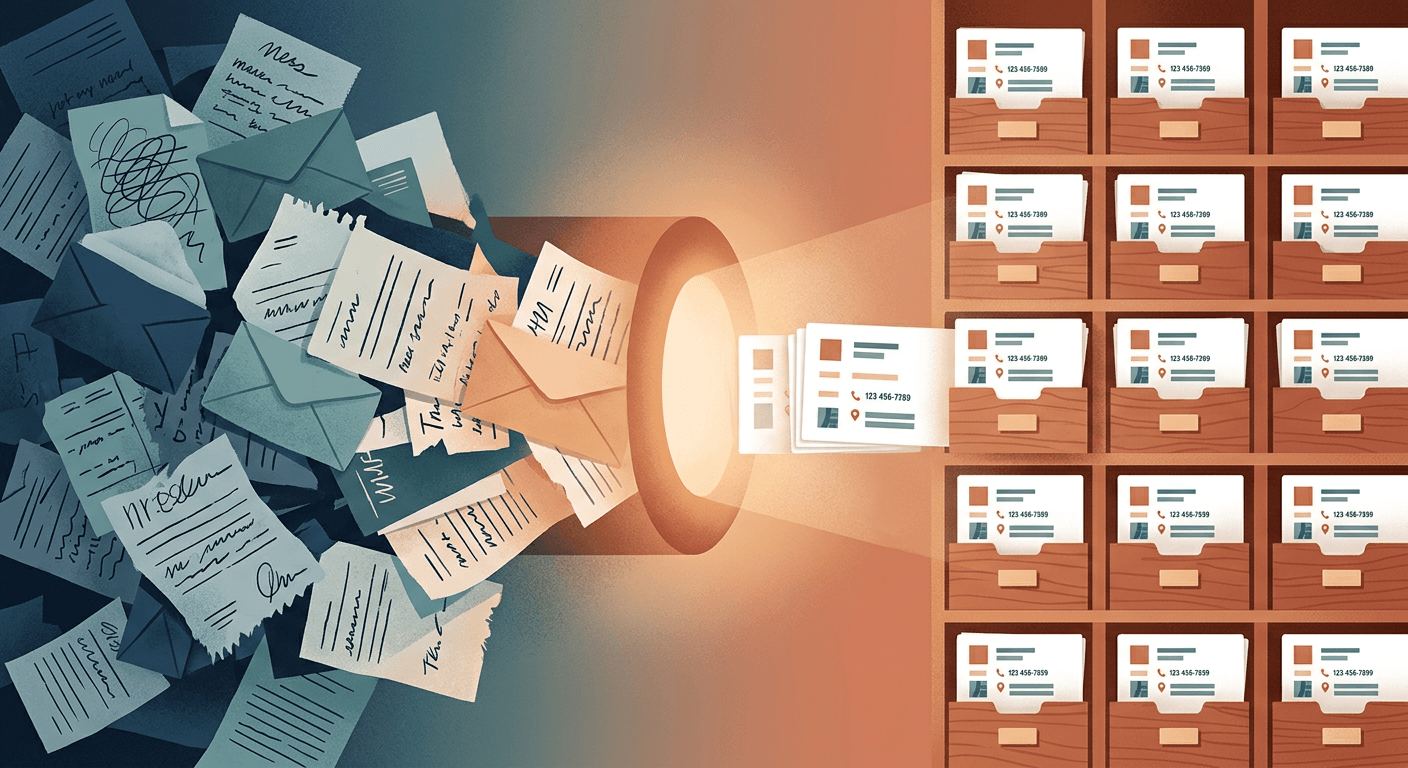
You have important client details buried across long, messy email threads, and copying them by hand is slow and easy to mess up. This guide will show you how to extract data from email automatically and pull data from email into a spreadsheet or CRM without writing any code. A smart automation workflow works better than older parsing software because AI can read unstructured text while ignoring email signatures, side conversations, and missing standard formats.
What you need before you start
- Zapier: An automation platform that connects your inbox to your database and runs the AI extraction step. You may need a paid plan for multi-step workflows, higher task volume, or certain AI features, depending on Zapier's current pricing and plan limits.
- Google Sheets: A free spreadsheet application. This acts as a holding area so you can review the AI's work before sending anything to your main client database.
- Gmail or Outlook: Your normal business email application.
- Time required: 30 to 90 minutes for a first working version, plus another 1 to 2 hours to test edge cases like forwarded threads.
- Skill level: No technical knowledge needed.
Extract data from email automatically into your database
Sending every single inbound email through an AI tool is usually a bad idea. It can increase costs on every automation run and create privacy or compliance concerns if you handle regulated data like medical histories, legal contracts, or financial records. You should isolate the emails that actually contain client details before you extract anything. You can do this by setting up a dedicated email alias like quotes@yourbusiness.com or filtering by specific subject lines.
A Zapier AI-powered extraction step can pull out standard details like names, phone numbers, and physical addresses. It can also identify custom business details like budget ranges, requested project deadlines, and specific service types mentioned in the body of the email.
Putting data straight into a CRM sounds efficient, but full automation can create messy contact records faster than manual entry if the extraction rules are weak. Google Sheets is forgiving because you can quickly scan and fix rows before moving data into your real database. If a prospect replies with a vague "same as last year" message, the AI may fail to extract standard details, leaving blank columns in your spreadsheet that a human can quickly spot and fix.
Here is how the two destinations compare for your first setup:
| Destination | Best For | Main Limitation | Ease of Use | Duplicate Risk |
|---|---|---|---|---|
| Google Sheets | Beginners and initial testing | Requires a human to move data later | Very easy | Low (easy to spot visually) |
| Direct to CRM | High-volume sales teams | AI errors can corrupt existing client records | Hard | High (requires strict matching rules) |
The prompt you use inside Zapier is the most important part of this entire system. If you just ask the AI to "find the client details," it may pull in email signatures, confidentiality disclaimers, and irrelevant side conversations. You need to give it strict boundaries.
Asking the AI to format the output as JSON makes the next step much easier. JSON is a structured text format that is easy to map in Zapier. When Zapier receives valid JSON, it can usually separate your extracted fields into individual data points that you can map into your spreadsheet columns.
Here is exactly how to extract info from emails to Google Sheets using a smart automation workflow.
- Open your email provider settings and create a dedicated folder for incoming client inquiries. You should see a new empty folder appear in your sidebar, ready to catch fresh leads.
- Set an inbox filtering rule to automatically route messages from your contact form or specific aliases to this new folder. You should see incoming test emails bypass your main inbox and land directly in the new folder.
- Log into Zapier and click the button to create a new automation. You should see a blank canvas asking you to set up a trigger.
- Select your email provider as the trigger app and choose the option to trigger on a new email in your dedicated folder. You should see a success message after testing the trigger with a recent email.
- Add a second step to your automation and select an AI-powered text extraction step. You should see a blank text box asking for your extraction instructions.
- Paste your custom extraction instructions into the prompt box. You should see your specific rules locked into the automation.
From this email thread, return only the latest confirmed client details as JSON. Ignore signatures, confidentiality disclaimers, and previous messages in the chain. Leave unknown fields completely blank. Do not guess missing information. Extract these exact fields: name, email, phone, company, service_requested, budget, deadline, address, and notes.
- Type the dynamic email body variable from your first step into the input field below your prompt. You should see a small badge representing the text of your incoming email.
- Add a third step to your automation and select Google Sheets as the destination app. You should see a list of actions like creating or updating a spreadsheet row.
- Click the option to create a new spreadsheet row and map your extracted AI fields to your specific columns. You should see sample data line up exactly with your column headers.
- Test the final step to send the extracted client details to your spreadsheet. You should see a new, cleanly formatted row appear in your Google Sheet immediately.
When extract data from email automatically goes wrong
Even the best AI setups fail when humans send confusing messages. Small errors in your contact records are harder to spot and clean up later than spreadsheet errors, which is why testing is critical.
The AI guesses missing information Sometimes a client does not include their budget or deadline, and the AI tries to fill the gap using generic text from earlier in the email. A plumbing client might write an email asking for a repair without stating a budget. The AI reads "I have a $500 coupon" at the bottom of the email and mistakenly logs $500 as the project budget. Fix this by adding strict negative constraints to your Zapier prompt, telling the AI specifically: "If the budget is not stated as an exact dollar number, leave the field blank."
Forwarded threads confuse the extraction Your receptionist might forward a lead to your personal inbox with the note, "Can you look at this?" The AI reads the top of the thread and extracts your receptionist's name and phone number instead of the actual client's details because it matches the most recent sender. Fix this by instructing the AI to focus on the actual client details in the thread rather than the forwarding note. You can also add a manual review step in Google Sheets for any email containing "Fwd:" in the subject line.
Duplicate contacts clutter your system A consulting prospect emails from their personal Yahoo account to ask a basic question. Two days later, they reply from their corporate email address with the actual project details and budget. The automation sees two different email addresses and creates two separate contact records. Fix this by using a search step in Zapier before creating a new record to search by name or company first, updating the existing record instead of creating a brand-new one if a match exists.
The AI extracts a vendor instead of a client A local cleaning service emails your general inbox offering office cleaning. The AI sees a company name and phone number, extracts the cleaner as a new lead in your system, and pollutes your sales pipeline. Fix this by adding a routing step based on email domains. You can instruct the automation to check the sender domain and halt the process if the domain belongs to known vendors or matches patterns you want to exclude.
What to do next after you automate email to CRM
Your first version will not be perfect, so you should run your new workflow alongside your manual data entry process for one week to catch edge cases and missing fields. Once you trust the AI output in your spreadsheet, you can start building automations that trigger off that clean data to completely automate email to CRM pipelines. Read our guide on how to automate repetitive admin tasks with AI to see what else you can connect to your new system.
FAQ
How can I extract client information from emails automatically? You can connect your inbox to an automation platform like Zapier to handle the data transfer. The platform catches new emails and sends the raw text to an AI extraction tool. The AI reads the unstructured message, pulls out specific details like names and phone numbers, and sends that clean data to your spreadsheet. This entire process runs in the background without any manual copying and pasting.
Can Zapier pull details out of an email and put them into Google Sheets? Yes, this is one of the most common ways small businesses use the platform. You can set up a workflow where a new Gmail or Outlook message triggers an automation. You then use an AI extraction step to find the specific data points you need from the email body. Finally, you map those extracted data points to create a new, organized row in your spreadsheet.
What is the best way to turn messy email threads into CRM contacts? Start by filtering your inbound emails so only relevant messages trigger the automation. Use a strict AI prompt that explicitly ignores signatures, legal disclaimers, and previous replies. Send the extracted data to a spreadsheet first, or create a CRM contact with a status that requires human review. This prevents bad data from corrupting your existing client records.
How accurate is AI at pulling names, phone numbers, and project details from emails? It is often accurate for common formats and clear, single-topic requests. It struggles significantly when an email chain has multiple side conversations, forwarded messages, vague references, or multiple people copied on the thread. You should test your setup on real, messy emails to see exactly where the AI makes mistakes. Always build a manual review step into your workflow until you trust the output.
Can I use ChatGPT to summarize emails and fill in my CRM? Yes, in some setups. You can use ChatGPT through Zapier or another integration to summarize emails and extract structured data for your CRM. You send the raw email text with a specific prompt asking for a summary and the exact data points you need. You then use the AI response to update your CRM fields. Keep in mind that sending client emails to third-party tools requires you to review their privacy and data retention policies.