Using AI to turn your inbox into a daily priority list instead of a constant distraction
AI email summary for small business inbox — choose the right tool, configure priority rules, and build a daily routine that recovers up to an hour of focus time.
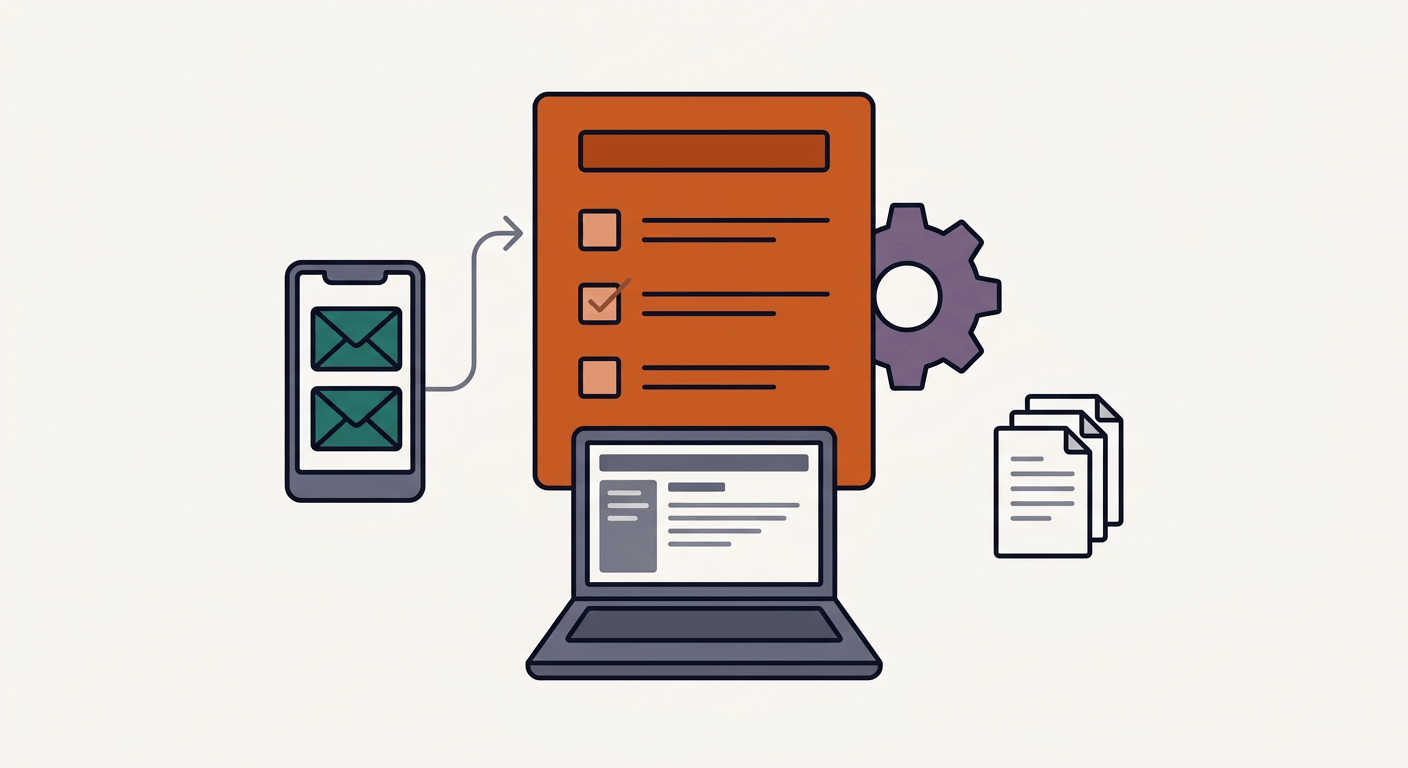
Knowledge workers spend an average of 28% of their workweek on email — roughly 11 hours for a 40-hour week, according to McKinsey Global Institute — and small business owners clock even higher, averaging 3.1 hours per day on email alone. Setting up an AI email summary for your small business inbox can change that. This post walks you through selecting the right AI email tool for your setup, configuring it to generate a daily priority list, and building a realistic inbox routine around it. Done right, this approach can help recover meaningful deep-focus time daily, based on RescueTime research showing that batching email into 2–3 sessions per day can save up to one hour compared with checking it 21 times throughout the day.
What You Need to Use AI to Prioritize Emails
The tool you need depends on your email provider and budget. Here are the four most relevant options for small business owners in 2026:
Gmail with Gemini — Google's native AI in Gmail summarizes threads, drafts replies, and offers a "Catch me up" digest for unread email. Included in Google Workspace Business Standard at $14/user/month as of 2026. Personal Gmail accounts also get Gemini in Gmail at no extra cost.
Microsoft Copilot in Outlook — Summarizes threads, extracts action items, and drafts replies using GPT-4o. Available via Microsoft 365 Business plans starting at $22/user/month as of early 2026.
SaneBox — Works across Gmail, Outlook, and Apple Mail. Automatically sorts low-priority email into folders (SaneLater, SaneNews, SaneBlackHole) using metadata only — not email body content. Plans start at $7/month for one account.
Shortwave — Gmail-native app that bundles emails by topic, generates AI daily digests, and answers natural-language questions like "What invoices are pending?" Free tier available; paid plans from $9/month. Updated with Gemini 1.5 integration as of late 2025.
Time required: Basic setup (one tool, default settings) takes 20–30 minutes. Full setup with priority rules, folder training, and automation into Slack or a project management tool runs 2–3 hours.
Skill level: No coding is required for any of the tools above. If you want to connect AI-flagged emails to Trello, Notion, or Slack, you'll need a Zapier or Make account — both have free tiers that cover basic workflows.
Configure Your AI Email Triage for Small Business Workflows
Step 1: Choose your tool based on your email provider and privacy needs
If you're on Gmail and already pay for Google Workspace Business Standard, start with Gemini — it's included and requires no new login. If you're on Outlook with a Microsoft 365 Business plan, Copilot is your equivalent. If you use multiple email addresses across providers, SaneBox is the only option here that works across all three major providers simultaneously.
Privacy note before you proceed: SaneBox processes metadata only (sender, subject line, timing patterns) — it never reads email body content. Shortwave and Superhuman do process full email content on their servers. If you operate in healthcare, legal, or finance, verify HIPAA or GDPR compliance with each vendor before connecting your inbox.
Step 2: Enable the AI summary or digest feature
For Gmail + Gemini:
- Open Gmail in a browser (not the mobile app for initial setup)
- Click the Gemini icon in the top-right of any long email thread to generate a thread summary
- To enable the "Catch me up" digest, open the Gemini side panel and type: "Summarize my unread emails from the last 24 hours and flag anything that needs a reply today"
- You should see a bulleted digest with sender, subject, and a one-line summary of each thread requiring action
For SaneBox:
- Connect your email account at sanebox.com — it requests standard OAuth access
- SaneBox automatically creates folders: SaneLater, SaneNews, SaneBlackHole within 24 hours of connection
- Over the first week, drag misclassified emails to the correct folder to train the algorithm — this step is not optional if you want accurate triage
- Enable the SaneBox Daily Digest email (settings → digest) to receive a morning summary of what landed in SaneLater
For Shortwave:
- Install the Shortwave app and connect your Gmail account
- Navigate to Settings → Digests and enable the Daily Digest for your preferred delivery time (7–8 AM works well for most owners)
- In the main inbox view, use the natural-language search bar to ask "What needs a reply today?" — Shortwave returns a filtered list based on your inbox content
Prompt template for Claude or GPT-4o (low-cost workaround if you already use these tools): If you're not ready to pay for a dedicated tool, paste up to 10 email threads into Claude 3.5 Sonnet or ChatGPT with this prompt:
"You are my email assistant. Review these email threads. For each one, tell me: (1) the sender and subject, (2) whether it needs a reply today, this week, or not at all, (3) the specific action required, if any, and (4) a one-sentence summary. Format as a numbered list."
You should get a structured priority list quickly. Verify it by checking that any thread you know is urgent appears in the "reply today" category.
This manual method can work as a low-cost alternative, but it requires you to batch-select and paste emails yourself — typically 5–10 minutes of daily friction that dedicated tools eliminate.
Step 3: Set priority rules for VIP senders
This step is where most setups fail. AI triage tools default to classifying emails by behavioral signals — how often you open messages from a sender, whether you reply. The catch is that a long-standing client who emails infrequently may get deprioritized simply because their cadence is low.
For SaneBox: Create a SaneVIP folder and manually drag key client emails into it. SaneBox will stop sorting those senders into lower-priority folders.
For Gmail + Gemini: Use Gmail's built-in label system — star or label VIP contacts, then instruct Gemini: "Always flag emails from [name or domain] as needing immediate attention."
For Shortwave: Add key contacts to your Pinned Contacts list; their threads always surface at the top of your digest.
Step 4: Build the automation layer (optional but high-value)
If your business runs on Slack, Trello, or Notion, connecting AI-flagged urgent emails to those tools removes a manual transfer step.
- Create a free Zapier account (free tier covers 100 tasks/month — enough for light use)
- Build a Zap: Trigger = new email in Gmail labeled "Urgent" → Action = post message to Slack channel #client-urgent
- For Notion users: Notion AI (included in Notion Plus at $10/user/month) can receive forwarded emails and automatically create task entries or CRM-style records — useful if Notion is your operating system
The trade-off is that automation adds setup time and one more system to maintain. For solo owners, the Zapier-to-Slack route can save a few minutes per urgent email by eliminating the manual copy-paste step into your team channel.
When Something Goes Wrong
Symptom: A VIP client's email lands in SaneLater or gets deprioritized.
Root cause: The AI hasn't seen enough historical interaction with that sender to classify them as high-priority.
Fix: Manually move the email to your inbox and add the sender to your SaneVIP folder (SaneBox) or Pinned Contacts (Shortwave). Both tools typically improve after a manual correction.
Symptom: The Gemini digest includes every unread email, not just actionable ones.
Root cause: The default "Catch me up" prompt doesn't filter for action items — it summarizes everything.
Fix: Refine your prompt to: "Summarize only emails requiring a reply or decision from me in the last 24 hours. Skip newsletters, receipts, and FYI-only messages."
Symptom: The Zapier automation posts too many emails to Slack, creating a new distraction problem.
Root cause: The Gmail label trigger is too broad — it's catching emails you marked "Important" via Gmail's default algorithm, not just genuinely urgent ones.
Fix: Create a separate Gmail label called "Action-Urgent" that you (or a Gemini rule) apply manually. Update the Zap trigger to use only that specific label.
What to Do Next
Run this setup for five business days before evaluating it — the first two days of SaneBox or Shortwave training can produce noisy results while the algorithm calibrates. After day five, count how many times you opened your inbox outside your designated windows. That number is your baseline for measuring improvement.
If you want to extend this system into meeting prep and client follow-ups, the same AI tools can do more than triage: [using AI assistants to prepare for client meetings and summarize follow-up actions](PENDING: using AI assistants to prepare for client meetings and summarize follow-up actions)
For owners who manage email across a small team, the calculus on tool cost changes when you multiply by headcount: [AI productivity tools cost comparison for small business teams](PENDING: AI productivity tools cost comparison for small business teams)
FAQ
How much does it cost to set up AI email triage for a small business?
The cheapest complete setup is SaneBox at $7/month, which works across all major email providers and requires no changes to your existing email client. If you're already on Google Workspace Business Standard ($14/user/month as of 2026), Gemini is included at no extra cost. The most expensive option here — Microsoft Copilot via Microsoft 365 Business at $22/user/month — is usually only justified if you're already in the Microsoft ecosystem. Pricing checked March 2026; verify current rates on each vendor's pricing page before purchasing.
Will AI miss important emails from clients?
This is the most common objection, and it's legitimate. AI triage tools misclassify based on behavioral patterns — a VIP client who emails rarely will initially score low. The honest answer is that every tool listed here lets you manually override and train priority rules, and after one to two weeks of corrections, results usually improve. The recommended approach is hybrid: AI handles triage and surfacing, and you make final reply decisions. No tool here is designed for fully automated replies without human review.
Does SaneBox actually read my emails?
No. SaneBox uses only metadata — sender address, subject line, send time, and historical interaction patterns — to classify emails. It never processes body content. This may make it a better fit for owners in regulated industries. Shortwave and Superhuman do process full email content on their servers, which means you need to verify their compliance documentation before use if you handle healthcare, legal, or financial client data.
What's the ROI of switching to AI email triage?
The rough math says: if batching email into two or three daily sessions can recover up to one hour of deep-focus work per day (per RescueTime data), and your effective hourly rate as a business owner is $75–$150, that's potentially $375–$750 in recovered productive capacity per week. Even Superhuman at $30/month — the most expensive tool in this post — can pay back its cost quickly if it helps you reclaim even a small amount of billable time. The setup cost (2–3 hours) may pay back within the first week for owners billing at professional rates.
Can I use ChatGPT or Claude instead of paying for a dedicated tool?
Yes, with caveats. Pasting email threads into Claude or ChatGPT and using the prompt template above can work well if you already have access to those tools. What you lose is automation — you manually select and paste emails each session, which adds 5–10 minutes of daily friction. This approach works well as a proof of concept before committing to a dedicated tool, or for owners with low email volume (under 30 emails per day), where full automation isn't worth the setup cost.
How do I organize my business email with AI if I use multiple email providers?
SaneBox is the strongest option for multi-provider setups — it works across Gmail, Outlook, and Apple Mail simultaneously from a single dashboard. Connect each account separately, and SaneBox applies consistent priority sorting across all of them. You'll receive one unified daily digest covering every connected inbox, which simplifies triage if you manage separate addresses for sales, support, and personal communication.